 ExtLab
 Sessions guide
ExtLab Sessions saves sets of tabs as sessions, closes them to free memory, and brings them back. It also backs up your windows by itself. This guide covers every part. Sections marked Pro need a license.
Install
Add it from the Chrome Web Store. It needs no account.
Pin the icon: click the puzzle piece in the Chrome toolbar, then the pin next to ExtLab Sessions. Backups start as soon as it is installed.
Save a window
- Click the ExtLab Sessions icon.
- Type a name, or keep the date and time it suggests.
- With more than one window open, choose This window or All windows.
- Press Save or
Enter.
A session keeps the order of tabs, pinned tabs, tab groups with their name, colour and collapsed state, and the size and place of each window. New tab pages are left out. Incognito windows are saved only when you save that window on purpose, and never in backups.
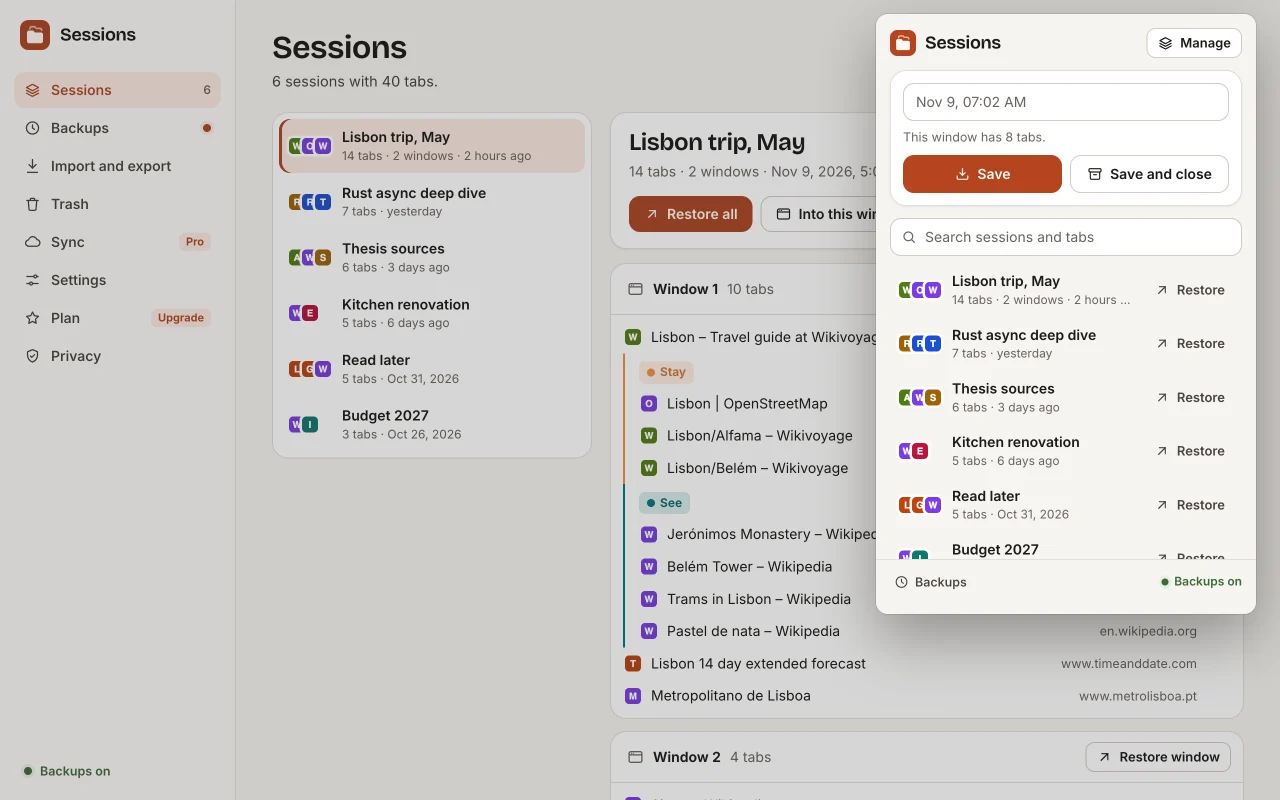
Save and close
Save and close saves first, checks that the session reads back from storage, and only then closes the tabs. Pinned tabs stay open, unless you turn that off in the settings. The window you are in stays open with the manager page, so the browser does not quit. In the name field, Shift+Enter does the same.
Restore
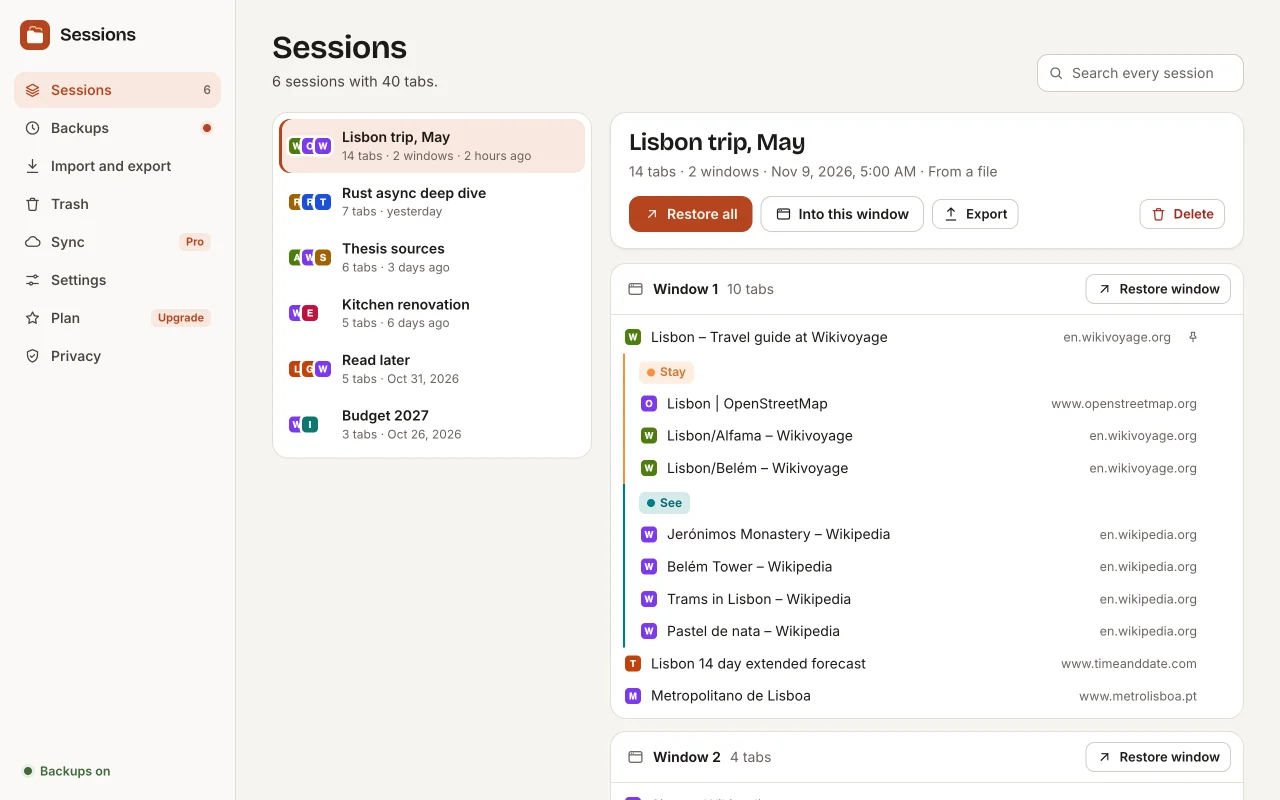
- Restore in the popup, or Restore all in the manager, opens each window of the session as a new window.
- Into this window adds every tab to the window you are in.
- Restore window opens one window. Click a tab to open only that tab.
Restored tabs wait unloaded until you open them, so 100 tabs do not load at once. Only the first tab of each window loads. Until you open it, an unloaded tab shows its address or a short title. Turn this off under Settings, Restore tabs unloaded. A session stays saved after a restore. To have it move to the trash instead, as OneTab does, turn on Delete a session after restoring it.
Find and edit sessions
Click Manage in the popup. The manager lists your sessions, newest first. Choose one to see its windows and tabs.
- Click the name to rename it.
- Point at a tab and click the cross to remove it.
- Remove duplicates appears when a URL is in the session more than once.
- Delete moves the session to the trash, with an Undo. The trash keeps it for 30 days.
- Search at the top finds every word you type in tab titles, URLs and session names, across all sessions.
In the popup, Close duplicates appears when the same URL is open in more than one tab. It keeps a pinned copy first, then the tab you are on.
Automatic backups
Backups run on your computer with no setup:
- The state of every window is kept up to date a few seconds after each change.
- A snapshot goes into the history every 10 minutes when your tabs changed. Choose 5 to 60 minutes in the settings.
- A window you close becomes a backup of its own, so you can undo it.
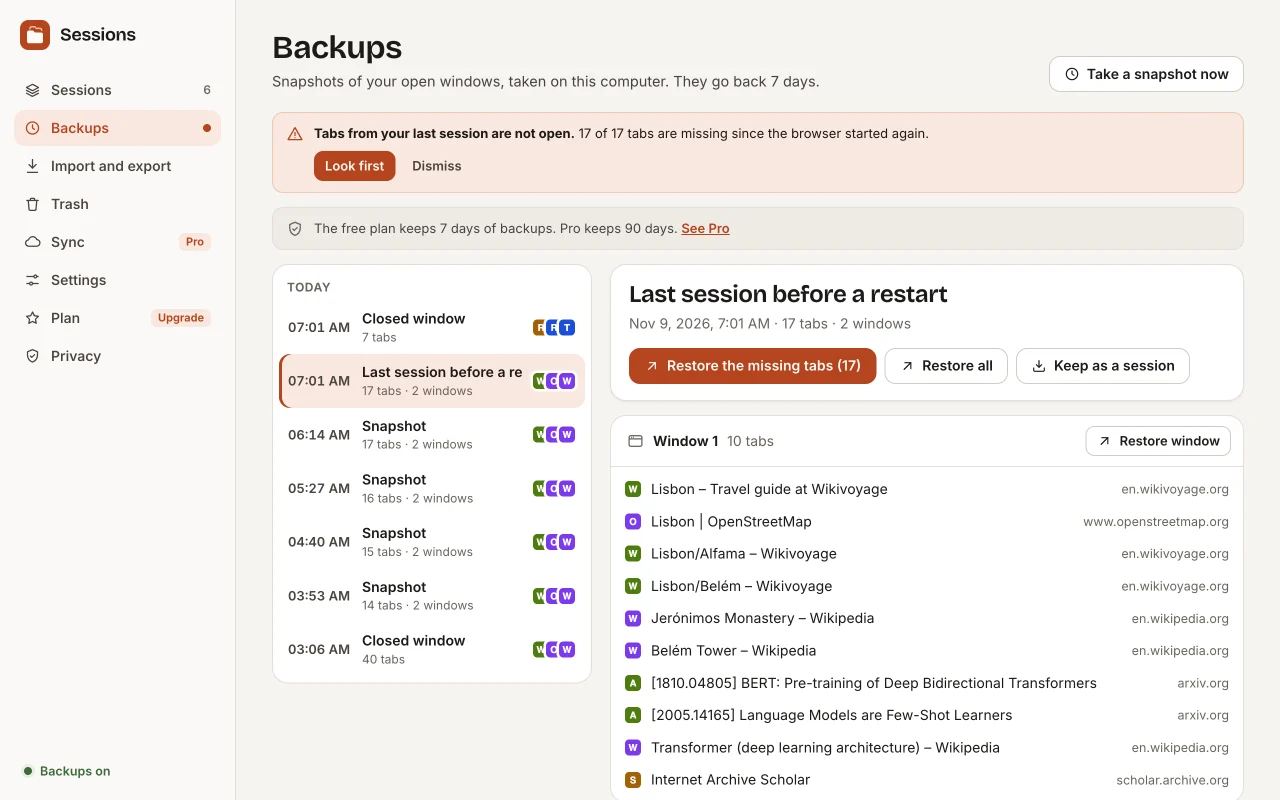
- When the browser starts again, your last session becomes a backup.
Open Backups in the manager to see them by day. Restore a whole backup or one window, or keep it as a saved session. The history goes back 7 days, or 90 days with Pro. Recent snapshots are all kept, and older ones are thinned to one per hour and then one per day.
After a crash or a restart
About 30 seconds after the browser starts, the extension compares your last session with the tabs that are open. When many are missing, the icon shows !, and the popup offers Restore them, which opens only the missing tabs. Look first shows the backup in the manager. Turn the prompt off under Offer missing tabs after a restart.
If Chrome itself restores your tabs, for example with Continue where you left off, nothing is missing and no prompt appears.
Move from OneTab or Session Buddy
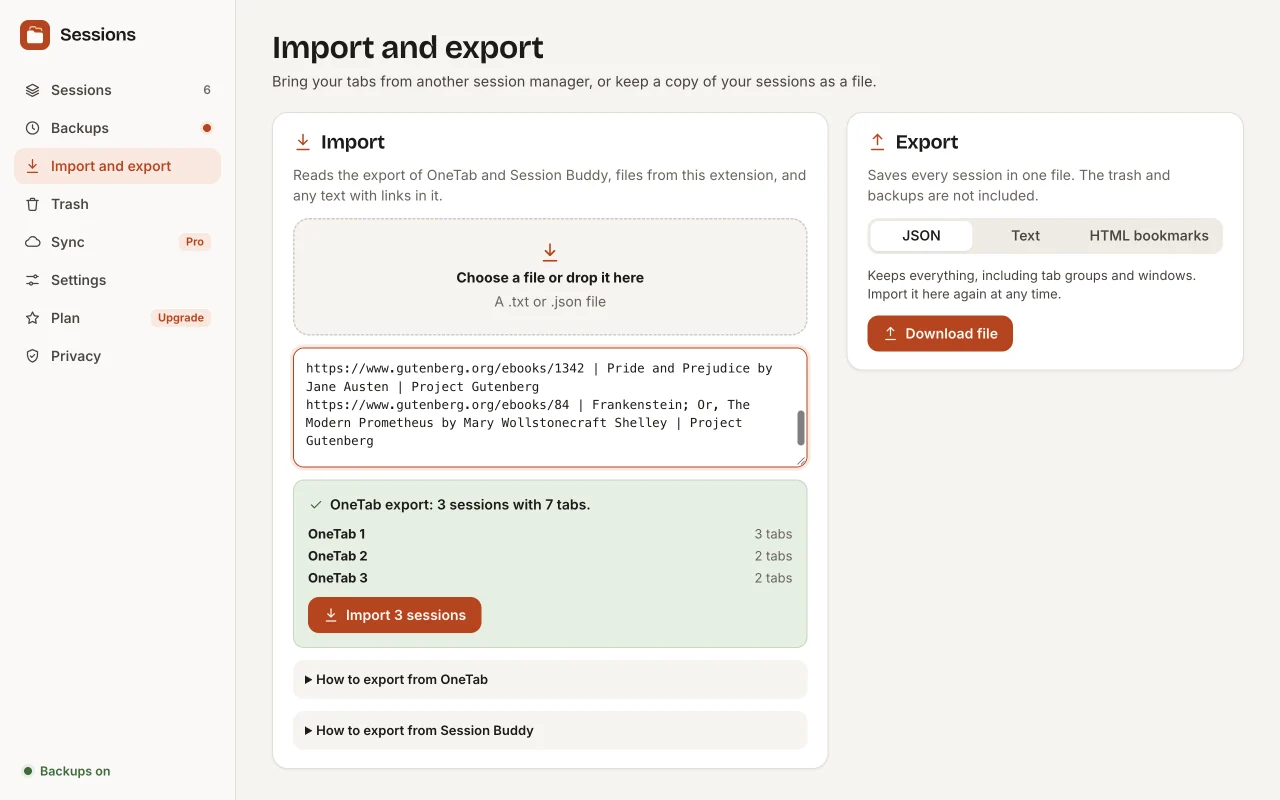
Open the manager, then Import and export. Choose a file, drop it on the box, or paste text. The page shows what it found before anything is saved.
- From OneTab
- In OneTab, click Export / Import URLs and copy the text under Export URLs. Paste it in the import box. Each OneTab group becomes a session. OneTab does not export group names, so the groups are numbered.
- From Session Buddy
- In Session Buddy, export your collections or sessions as JSON, and choose that file. Files from the current Session Buddy and from older versions both work, with window names, pinned tabs and window sizes. Session Buddy does not export the names or colours of tab groups.
- Anything else
- Any text with links becomes one session. A line of text above a link becomes its title.
Export
| Format | Use it for |
|---|---|
| JSON | A full copy, including groups and windows. Import it here again. |
| Text | One URL | Title per line, the format of OneTab |
| HTML bookmarks | Opens in any browser, and Chrome can import it as bookmark folders |
Chrome deletes an extension's data when you remove it, so export first if you uninstall.
Keyboard shortcuts
| Keys | Action |
|---|---|
Alt+Shift+S | Open the popup |
Alt+Shift+W | Save this window |
Alt+Shift+X | Save and close this window |
Alt+Shift+T | Restore the last saved session |
On a Mac, Alt is Option. The icon shows a short check mark when a shortcut worked. Change the keys at chrome://extensions/shortcuts.
Sync between computers (Pro)
- In the manager, open Sync.
- Choose a passphrase of at least 10 characters, type it twice, and turn on sync.
- On your other computer, activate the same license and turn on sync with the same passphrase.
Saved sessions and the trash sync. Backups stay on the computer that made them. Each session is encrypted on your computer before it is sent, so our server stores only text it cannot read. A lost passphrase cannot be recovered. A session deleted on one computer goes to the trash on the other.
Activate Pro
- Buy Pro on Gumroad. Gumroad emails your license key.
- In the manager, open Plan, paste the key and activate it.
When Pro ends, sync stops and the backup history goes back to 7 days. Saved sessions stay, with every free feature.
Troubleshooting
- Some tabs did not open.
- Chrome does not let extensions open some pages. For file links, open
chrome://extensions, then the details of ExtLab Sessions, and turn on Allow access to file URLs. - An unloaded tab shows only its address.
- That is normal. Click the tab, and the page loads with its title.
- The badge shows ! after every restart.
- Chrome opens a new tab page at start by default, so your last tabs are missing each time. Restore or dismiss them, set Chrome to Continue where you left off, or turn the prompt off.
- A shortcut does nothing.
- Another extension may use the same keys. Set new ones at
chrome://extensions/shortcuts. - Sync says the passphrase does not match.
- Use the passphrase you chose on the first computer. It cannot be reset from here.
Your tabs stay in your browser. The privacy policy lists what is sent. Still stuck? Write to [email protected].